mcp-hfspace MCP Server 🤗
[!TIP]
You can access and configure Hugging Face MCP services directly at https://hf.co/mcp, including Gradio spaces.
This project has been superceded by the official Hugging Face MCP Server and Gradio MCP Endpoints.
Alternatively you can run hf-mcp-server locally as a STDIO Server, or with robust support for SSE, Streaming HTTP and Streaming HTTP JSON Mode. This also runs a local UI for selecting tools and endpoints and supports ToolListChangedNotifications too.
hf.co/mcp

mcp-hfspace
Read the introduction here llmindset.co.uk/resources/mcp-hfspace/
Connect to Hugging Face Spaces with minimal setup needed - simply add your spaces and go!
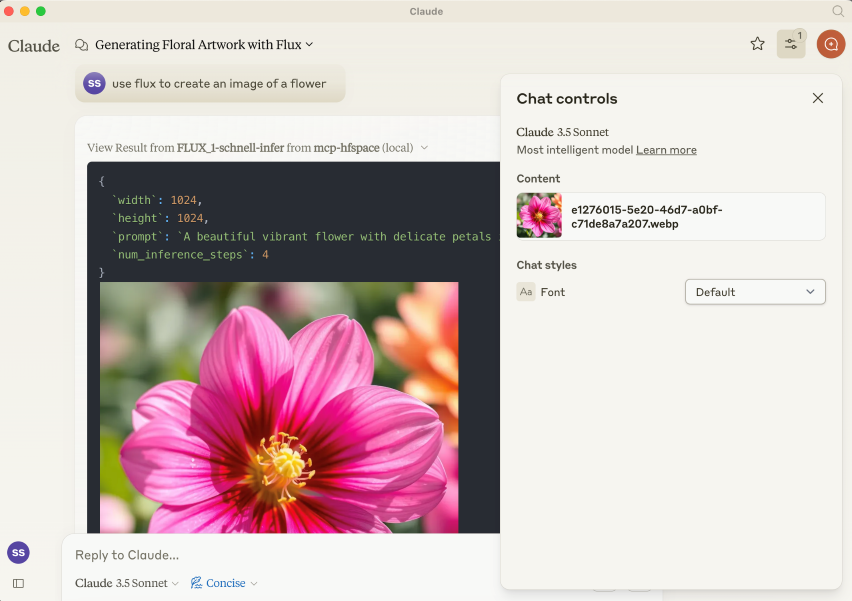
By default, it connects to black-forest-labs/FLUX.1-schnell providing Image Generation capabilities to Claude Desktop.
Gradio MCP Support
[!TIP]
Gradio 5.28 now has integrated MCP Support via SSE: https://huggingface.co/blog/gradio-mcp. Check out whether your target Space is MCP Enabled!
Installation
NPM Package is @llmindset/mcp-hfspace.
Install a recent version of NodeJS for your platform, then add the following to the mcpServers section of your claude_desktop_config.json file:
    "mcp-hfspace": {
      "command": "npx",
      "args": [
        "-y",
        "@llmindset/mcp-hfspace"
      ]
    }
Please make sure you are using Claude Desktop 0.78 or greater.
This will get you started with an Image Generator.
Basic setup
Supply a list of HuggingFace spaces in the arguments. mcp-hfspace will find the most appropriate endpoint and automatically configure it for usage. An example claude_desktop_config.json is supplied below.
By default the current working directory is used for file upload/download. On Windows this is a read/write folder at \users\<username>\AppData\Roaming\Claude\<version.number\, and on MacOS it is the is the read-only root: /.
It is recommended to override this and set a Working Directory for handling the upload and download of images and other file-based content. Specify either the --work-dir=/your_directory argument or MCP_HF_WORK_DIR environment variable.
An example configuration for using a modern image generator, vision model and text to speech, with a working directory set is below:
    "mcp-hfspace": {
      "command": "npx",
      "args": [
        "-y",
        "@llmindset/mcp-hfspace",
        "--work-dir=/Users/evalstate/mcp-store",
        "shuttleai/shuttle-jaguar",
        "styletts2/styletts2",
        "Qwen/QVQ-72B-preview"
      ]
    }
To use private spaces, supply your Hugging Face Token with either the --hf-token=hf_... argument or HF_TOKEN environment variable.
It's possible to run multiple server instances to use different working directories and tokens if needed.
File Handling and Claude Desktop Mode
By default, the Server operates in Claude Desktop Mode. In this mode, Images are returned in the tool responses, while other files are saved in the working folder, their file path is returned as a message. This will usually give the best experience if using Claude Desktop as the client.
URLs can also be supplied as inputs: the content gets passed to the Space.
There is an "Available Resources" prompt that gives Claude the available files and mime types from your working directory. This is currently the best way to manage files.
Example 1 - Image Generation (Download Image / Claude Vision)
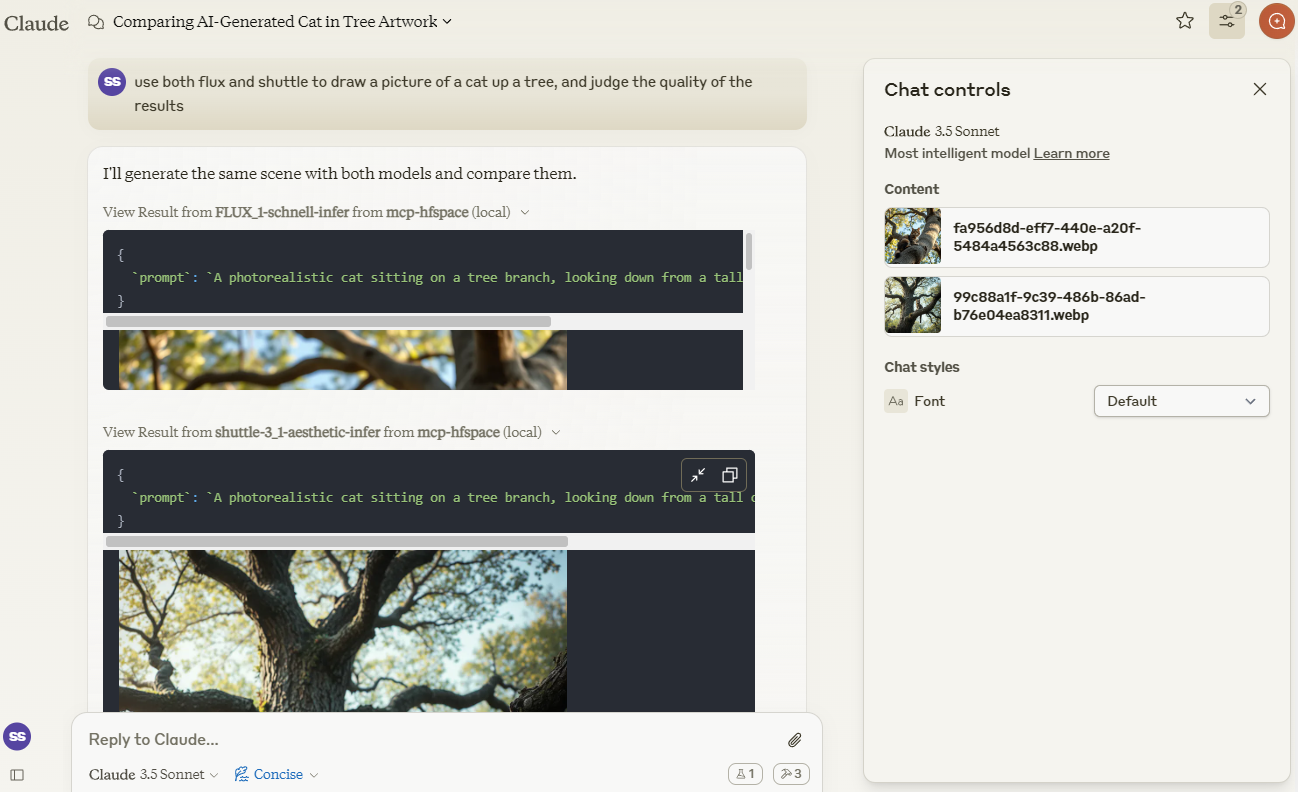
We'll use Claude to compare images created by shuttleai/shuttle-3.1-aesthetic and FLUX.1-schnell. The images gets saved to the Work Directory, as well as included in Claude's context window - so Claude can use its vision capabilities.
Example 2 - Vision Model (Upload Image)
We'll use merve/paligemma2-vqav2 space link to query an image. In this case, we specify the filename which is available in the Working Directory: we don't want to upload the Image directly to Claude's context window. So, we can prompt Claude:
use paligemma to find out who is in "test_gemma.jpg" -> Text Output: david bowie
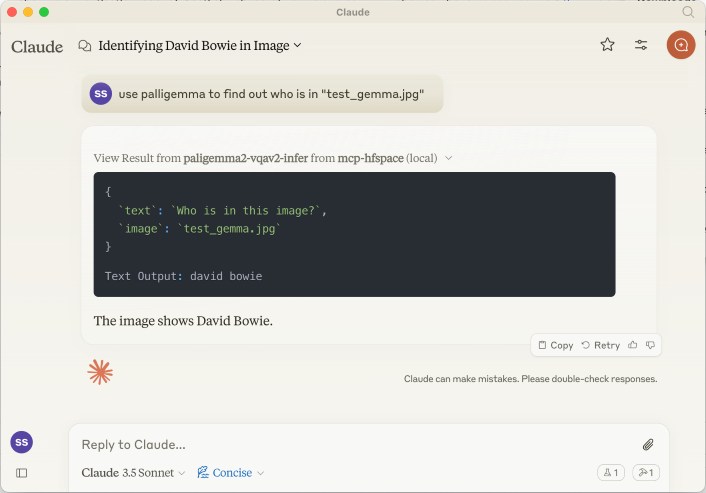
If you are uploading something to Claude's context use the Paperclip Attachment button, otherwise specify the filename for the Server to send directly.
We can also supply a URL. For example : use paligemma to detect humans in https://e3.365dm.com/24/12/1600x900/skynews-taylor-swift-eras-tour_6771083.jpg?20241209000914 -> One person is detected in the image - Taylor Swift on stage.
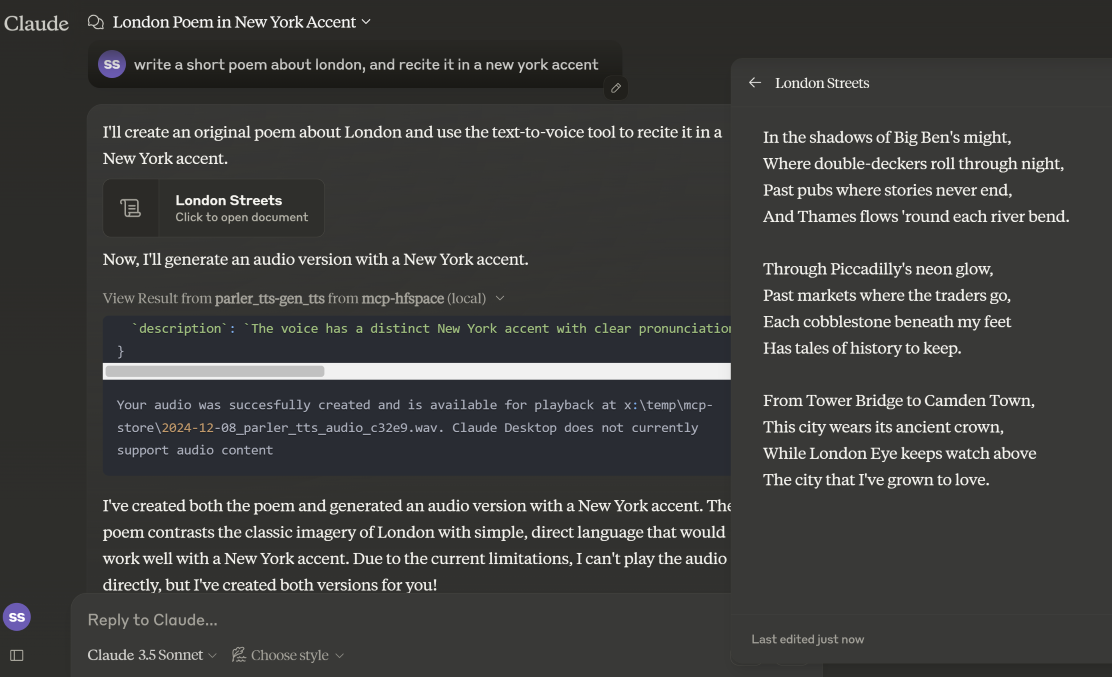
Example 3 - Text-to-Speech (Download Audio)
In Claude Desktop Mode, the audio file is saved in the WORK_DIR, and Claude is notified of the creation. If not in desktop mode, the file is returned as a base64 encoded resource to the Client (useful if it supports embedded Audio attachments).
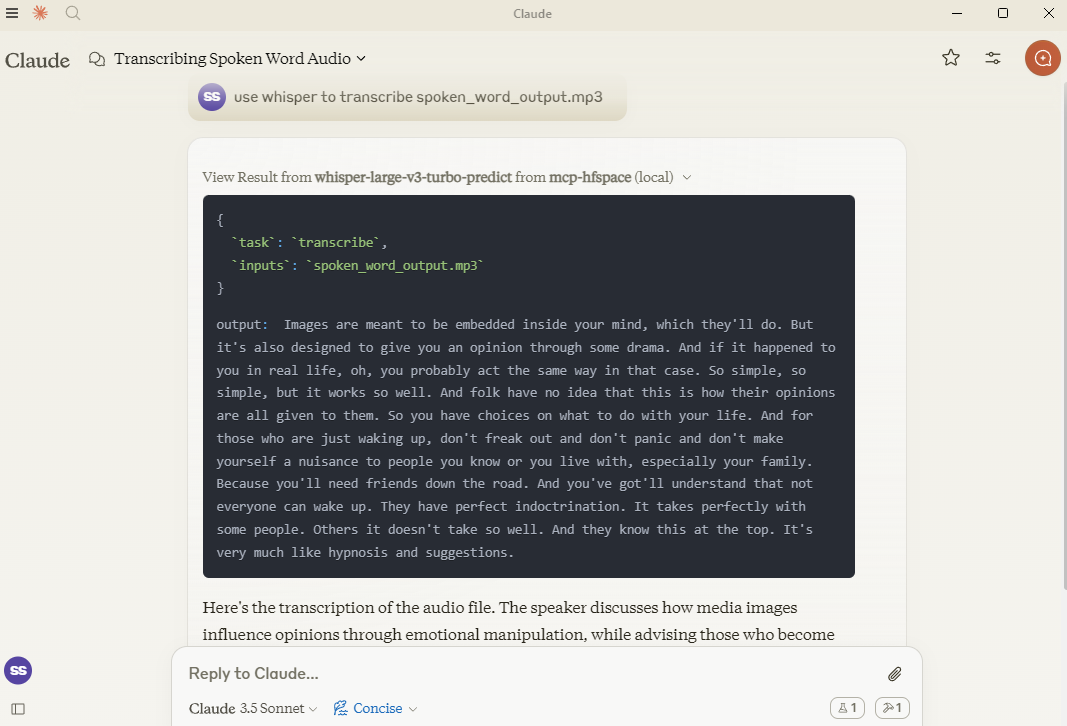
Example 4 - Speech-to-Text (Upload Audio)
Here, we use hf-audio/whisper-large-v3-turbo to transcribe some audio, and make it available to Claude.
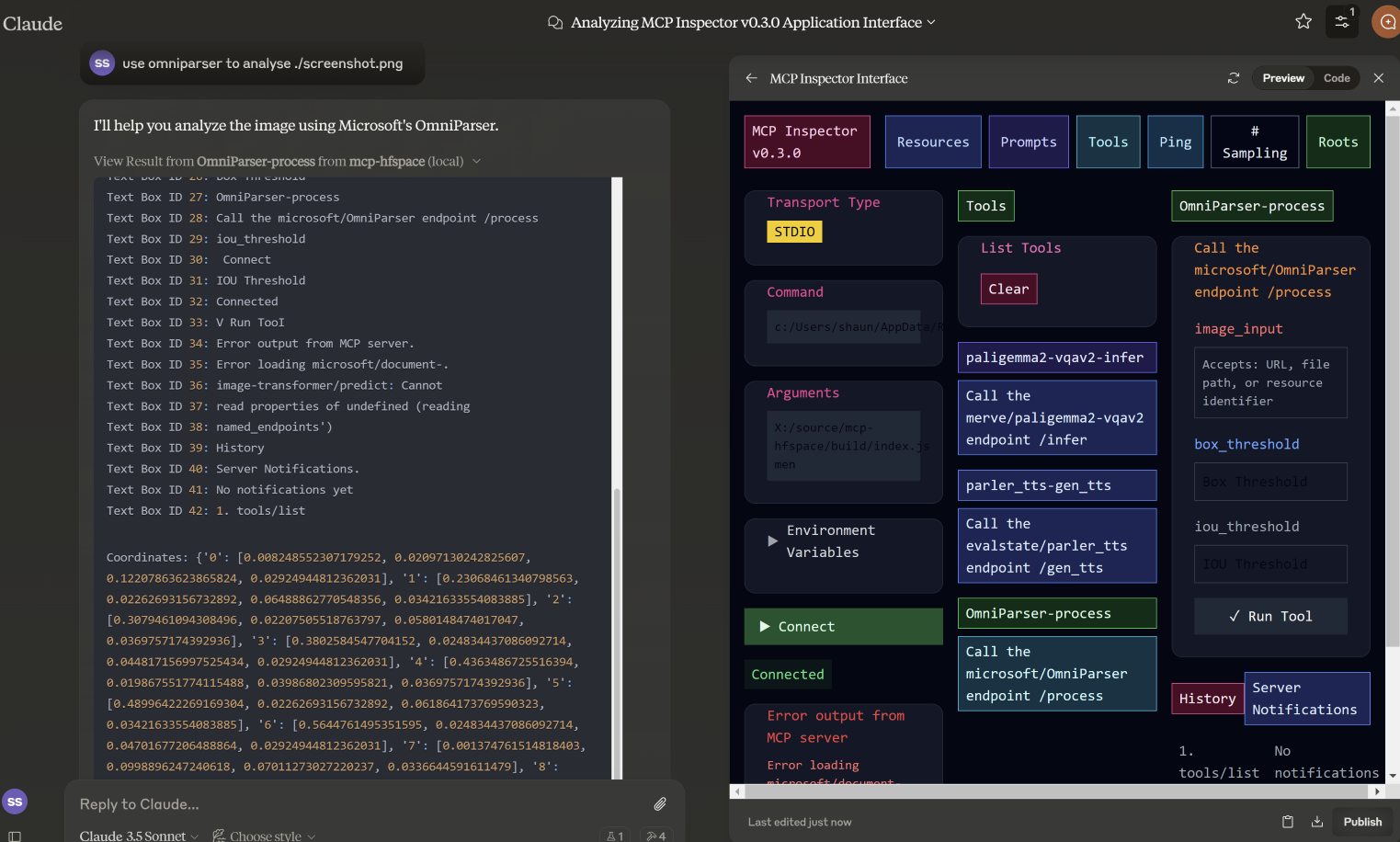
Example 5 - Image-to-Image
In this example, we specify the filename for microsoft/OmniParser to use, and get returned an annotated Image and 2 separate pieces of text: descriptions and coordinates. The prompt used was use omniparser to analyse ./screenshot.png and use the analysis to produce an artifact that reproduces that screen. DawnC/Pawmatch is also good at this.
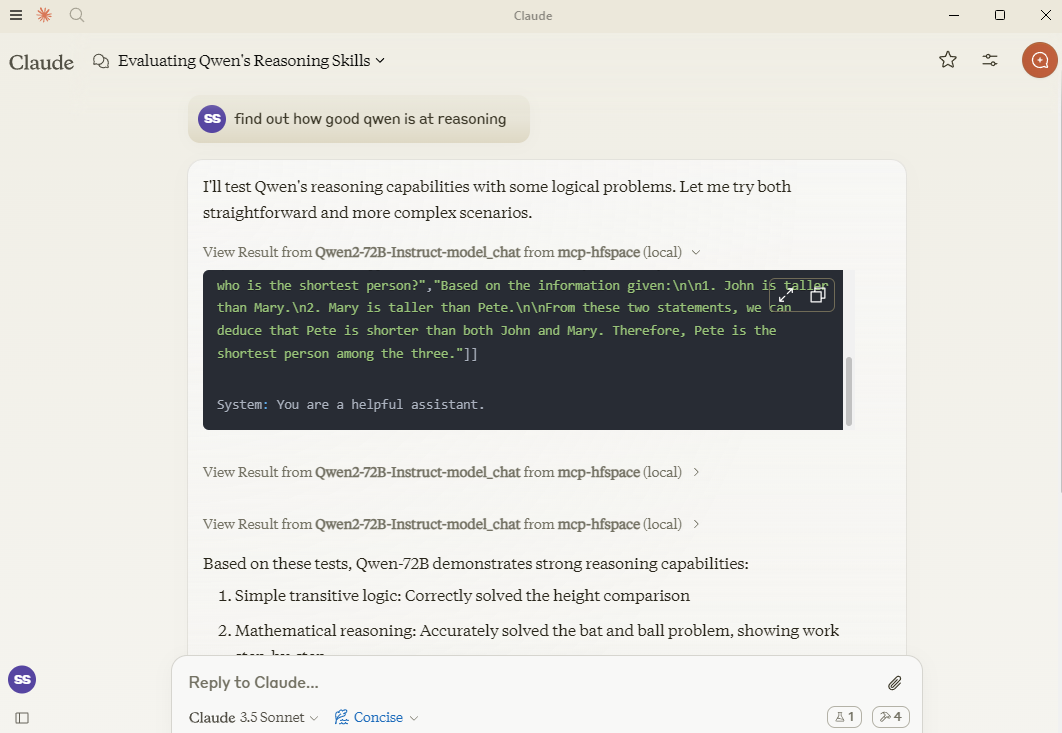
Example 6 - Chat
In this example, Claude sets a number of reasoning puzzles for Qwen, and asks follow-up questions for clarification.
Specifying API Endpoint
If you need, you can specify a specific API Endpoint by adding it to the spacename. So rather than passing in Qwen/Qwen2.5-72B-Instruct you would use Qwen/Qwen2.5-72B-Instruct/model_chat.
Claude Desktop Mode
This can be disabled with the option --desktop-mode=false or the environment variable CLAUDE_DESKTOP_MODE=false. In this case, content as returned as an embedded Base64 encoded Resource.
Recommended Spaces
Some recommended spaces to try:
Image Generation
- shuttleai/shuttle-3.1-aesthetic
- black-forest-labs/FLUX.1-schnell
- yanze/PuLID-FLUX
- gokaygokay/Inspyrenet-Rembg (Background Removal)
- diyism/Datou1111-shou_xin - Beautiful Pencil Drawings
Chat
- Qwen/Qwen2.5-72B-Instruct
- prithivMLmods/Mistral-7B-Instruct-v0.3
Text-to-speech / Audio Generation
- fantaxy/Sound-AI-SFX
- parler-tts/parler_tts
Speech-to-text
- hf-audio/whisper-large-v3-turbo
- (the openai models use unnamed parameters so will not work)
Text-to-music
- haoheliu/audioldm2-text2audio-text2music
Vision Tasks
- microsoft/OmniParser
- merve/paligemma2-vqav2
- merve/paligemma-doc
- DawnC/PawMatchAI
- DawnC/PawMatchAI/on_find_match_click - for interactive dog recommendations
Other Features
Prompts
Prompts for each Space are generated, and provide an opportunity to input. Bear in mind that often Spaces aren't configured with particularly helpful labels etc. Claude is actually very good at figuring this out, and the Tool description is quite rich (but not visible in Claude Desktop).
Resources
A list of files in the WORK_DIR is returned, and as a convenience returns the name as "Use the file..." text. If you want to add something to Claude's context, use the paperclip - otherwise specify the filename for the MCP Server. Claude does not support transmitting resources from within Context.
Private Spaces
Private Spaces are supported with a HuggingFace token. The Token is used to download and save generated content.
Using Claude Desktop
To use with Claude Desktop, add the server config:
On MacOS: ~/Library/Application Support/Claude/claude_desktop_config.json
On Windows: %APPDATA%/Claude/claude_desktop_config.json
{
  "mcpServers": {
    "mcp-hfspace": {
      "command": "npx"
      "args": [
        "-y",
        "@llmindset/mcp-hfspace",
        "--work-dir=~/mcp-files/ or x:/temp/mcp-files/",
        "--HF_TOKEN=HF_{optional token}"
        "Qwen/Qwen2-72B-Instruct",
        "black-forest-labs/FLUX.1-schnell",
        "space/example/specific-endpint"
        (... and so on)
        ]
    }
  }
}
Known Issues and Limitations
mcp-hfspace
- Endpoints with unnamed parameters are unsupported for the moment.
- Full translation from some complex Python types to suitable MCP formats.
Claude Desktop
- Claude Desktop 0.75 doesn't seem to respond to errors from the MCP Server, timing out instead. For persistent issues, use the MCP Inspector to get a better look at diagnosing what's going wrong. If something suddenly stops working, it's probably due to exhausting your HuggingFace ZeroGPU quota - try again after a short period, or set up your own Space for hosting.
- Claude Desktop seems to use a hard timeout value of 60s, and doesn't appear to use Progress Notifications to manage UX or keep-alive. If you are using ZeroGPU spaces, large/heavy jobs may timeout. Check the WORK_DIR for results though; the MCP Server will still capture and save the result if it was produced.
- Claude Desktops reporting of Server Status, logging etc. isn't great - use @modelcontextprotocol/inspector to help diagnose issues.
HuggingFace Spaces
- If ZeroGPU quotas or queues are too long, try duplicating the space. If your job takes less than sixty seconds, you can usually change the function decorator
@spaces.GPU(duration=20) in app.py to request less quota when running the job.
- Passing HF_TOKEN will make ZeroGPU quotas apply to your (Pro) HF account
- If you have a private space, and dedicated hardware your HF_TOKEN will give you direct access to that - no quota's apply. I recommend this if you are using for any kind of Production task.
Third Party MCP Services