Penpot MCP Server 🎨🤖

AI-Powered Design Workflow Automation
Connect Claude AI and other LLMs to Penpot designs via Model Context Protocol



🚀 What is Penpot MCP?
Penpot MCP is a revolutionary Model Context Protocol (MCP) server that bridges the gap between AI language models and Penpot, the open-source design and prototyping platform. This integration enables AI assistants like Claude (in both Claude Desktop and Cursor IDE) to understand, analyze, and interact with your design files programmatically.
🎯 Key Benefits
- 🤖 AI-Native Design Analysis: Let Claude AI analyze your UI/UX designs, provide feedback, and suggest improvements
- ⚡ Automated Design Workflows: Streamline repetitive design tasks with AI-powered automation
- 🔍 Intelligent Design Search: Find design components and patterns across your projects using natural language
- 📊 Design System Management: Automatically document and maintain design systems with AI assistance
- 🎨 Cross-Platform Integration: Works with any MCP-compatible AI assistant (Claude Desktop, Cursor IDE, etc.)
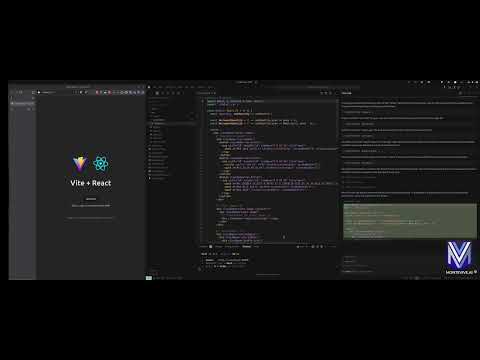
🎥 Demo Video
Check out our demo video to see Penpot MCP in action:
✨ Features
🔌 Core Capabilities
- MCP Protocol Implementation: Full compliance with Model Context Protocol standards
- Real-time Design Access: Direct integration with Penpot's API for live design data
- Component Analysis: AI-powered analysis of design components and layouts
- Export Automation: Programmatic export of design assets in multiple formats
- Design Validation: Automated design system compliance checking
- Command-line Utilities: Powerful CLI tools for design file analysis and validation
- Python SDK: Comprehensive Python library for custom integrations
- REST API: HTTP endpoints for web application integration
- Extensible Architecture: Plugin system for custom AI workflows
🎨 AI Integration Features
- Claude Desktop & Cursor Integration: Native support for Claude AI assistant in both Claude Desktop and Cursor IDE
- Design Context Sharing: Provide design context to AI models for better responses
- Visual Component Recognition: AI can "see" and understand design components
- Natural Language Queries: Ask questions about your designs in plain English
- IDE Integration: Seamless integration with modern development environments
💡 Use Cases
For Designers
- Design Review Automation: Get instant AI feedback on accessibility, usability, and design principles
- Component Documentation: Automatically generate documentation for design systems
- Design Consistency Checks: Ensure brand guidelines compliance across projects
- Asset Organization: AI-powered tagging and categorization of design components
For Developers
- Design-to-Code Workflows: Bridge the gap between design and development with AI assistance
- API Integration: Programmatic access to design data for custom tools and workflows
- Automated Testing: Generate visual regression tests from design specifications
- Design System Sync: Keep design tokens and code components in sync
For Product Teams
- Design Analytics: Track design system adoption and component usage
- Collaboration Enhancement: AI-powered design reviews and feedback collection
- Workflow Optimization: Automate repetitive design operations and approvals
- Cross-tool Integration: Connect Penpot with other tools in your design workflow
🚀 Quick Start
Prerequisites
- Python 3.12+ (Latest Python recommended for optimal performance)
- Penpot Account (Sign up free)
- Claude Desktop or Cursor IDE (Optional, for AI integration)
Installation
Prerequisites
- Python 3.12+
- Penpot account credentials
Installation
Option 1: Install from PyPI
pip install penpot-mcp
Option 2: Using uv (recommended for modern Python development)
# Install directly with uvx (when published to PyPI)
uvx penpot-mcp

# For local development, use uvx with local path
uvx --from . penpot-mcp

# Or install in a project with uv
uv add penpot-mcp
Option 3: Install from source
# Clone the repository
git clone https://github.com/montevive/penpot-mcp.git
cd penpot-mcp

# Using uv (recommended)
uv sync
uv run penpot-mcp

# Or using traditional pip
python -m venv .venv
source .venv/bin/activate  # On Windows: .venv\Scripts\activate
pip install -e .
Configuration
Create a .env file based on env.example with your Penpot credentials:
PENPOT_API_URL=https://design.penpot.app/api
PENPOT_USERNAME=your_penpot_username
PENPOT_PASSWORD=your_penpot_password
PORT=5000
DEBUG=true
⚠️ CloudFlare Protection Notice: The Penpot cloud site (penpot.app) uses CloudFlare protection that may occasionally block API requests. If you encounter authentication errors or blocked requests:
- Open your web browser and navigate to https://design.penpot.app
- Log in to your Penpot account
- Complete any CloudFlare human verification challenges if prompted
- Once verified, the API requests should work normally for a period of time
Usage
Running the MCP Server
# Using uvx (when published to PyPI)
uvx penpot-mcp

# Using uvx for local development
uvx --from . penpot-mcp

# Using uv in a project (recommended for local development)
uv run penpot-mcp

# Using the entry point (if installed)
penpot-mcp

# Or using the module directly
python -m penpot_mcp.server.mcp_server
Debugging the MCP Server
To debug the MCP server, you can:
- Enable debug mode in your
.env file by setting DEBUG=true
- Use the Penpot API CLI for testing API operations:
# Test API connection with debug output
python -m penpot_mcp.api.penpot_api --debug list-projects

# Get details for a specific project
python -m penpot_mcp.api.penpot_api --debug get-project --id YOUR_PROJECT_ID

# List files in a project
python -m penpot_mcp.api.penpot_api --debug list-files --project-id YOUR_PROJECT_ID

# Get file details
python -m penpot_mcp.api.penpot_api --debug get-file --file-id YOUR_FILE_ID
The package includes utility command-line tools:
# Generate a tree visualization of a Penpot file
penpot-tree path/to/penpot_file.json

# Validate a Penpot file against the schema
penpot-validate path/to/penpot_file.json
MCP Monitoring & Testing
MCP CLI Monitor
# Start your MCP server in one terminal
python -m penpot_mcp.server.mcp_server

# In another terminal, use mcp-cli to monitor and interact with your server
python -m mcp.cli monitor python -m penpot_mcp.server.mcp_server

# Or connect to an already running server on a specific port
python -m mcp.cli monitor --port 5000
MCP Inspector
# Start your MCP server in one terminal
python -m penpot_mcp.server.mcp_server

# In another terminal, run the MCP Inspector (requires Node.js)
npx @modelcontextprotocol/inspector
Using the Client
# Run the example client
penpot-client
Resources
server://info - Server status and informationpenpot://schema - Penpot API schema as JSONpenpot://tree-schema - Penpot object tree schema as JSONrendered-component://{component_id} - Rendered component imagespenpot://cached-files - List of cached Penpot files
list_projects - List all Penpot projectsget_project_files - Get files for a specific projectget_file - Retrieve a Penpot file by its ID and cache itexport_object - Export a Penpot object as an imageget_object_tree - Get the object tree structure for a Penpot objectsearch_object - Search for objects within a Penpot file by name
AI Integration
The Penpot MCP server can be integrated with AI assistants using the Model Context Protocol. It supports both Claude Desktop and Cursor IDE for seamless design workflow automation.
Claude Desktop Integration
For detailed Claude Desktop setup instructions, see CLAUDE_INTEGRATION.md.
Add the following configuration to your Claude Desktop config file (~/Library/Application Support/Claude/claude_desktop_config.json on macOS or %APPDATA%\Claude\claude_desktop_config.json on Windows):
{
  "mcpServers": {
    "penpot": {
      "command": "uvx",
      "args": ["penpot-mcp"],
      "env": {
        "PENPOT_API_URL": "https://design.penpot.app/api",
        "PENPOT_USERNAME": "your_penpot_username",
        "PENPOT_PASSWORD": "your_penpot_password"
      }
    }
  }
}
Cursor IDE Integration
Cursor IDE supports MCP servers through its AI integration features. To configure Penpot MCP with Cursor:
Install the MCP server (if not already installed):
pip install penpot-mcp
Configure Cursor settings by adding the MCP server to your Cursor configuration. Open Cursor settings and add:
{
  "mcpServers": {
    "penpot": {
      "command": "uvx",
      "args": ["penpot-mcp"],
      "env": {
        "PENPOT_API_URL": "https://design.penpot.app/api",
        "PENPOT_USERNAME": "your_penpot_username",
        "PENPOT_PASSWORD": "your_penpot_password"
      }
    }
  }
}
Alternative: Use environment variables by creating a .env file in your project root:
PENPOT_API_URL=https://design.penpot.app/api
PENPOT_USERNAME=your_penpot_username
PENPOT_PASSWORD=your_penpot_password
Start the MCP server in your project:
# In your project directory
penpot-mcp
Use in Cursor: Once configured, you can interact with your Penpot designs directly in Cursor by asking questions like:
- "Show me all projects in my Penpot account"
- "Analyze the design components in project X"
- "Export the main button component as an image"
- "What design patterns are used in this file?"
Key Integration Features
Both Claude Desktop and Cursor integration provide:
- Direct access to Penpot projects and files
- Visual component analysis with AI-powered insights
- Design export capabilities for assets and components
- Natural language queries about your design files
- Real-time design feedback and suggestions
- Design system documentation generation
Package Structure
penpot_mcp/
├── api/              # Penpot API client
├── server/           # MCP server implementation
│   ├── mcp_server.py # Main MCP server
│   └── client.py     # Client implementation
├── tools/            # Utility tools
│   ├── cli/          # Command-line interfaces
│   └── penpot_tree.py # Penpot object tree visualization
├── resources/        # Resource files and schemas
└── utils/            # Helper utilities
Development
Testing
The project uses pytest for testing:
# Using uv (recommended)
uv sync --extra dev
uv run pytest

# Run with coverage
uv run pytest --cov=penpot_mcp tests/

# Using traditional pip
pip install -e ".[dev]"
pytest
pytest --cov=penpot_mcp tests/
Linting
# Using uv (recommended)
uv sync --extra dev

# Set up pre-commit hooks
uv run pre-commit install

# Run linting
uv run python lint.py

# Auto-fix linting issues
uv run python lint.py --autofix

# Using traditional pip
pip install -r requirements-dev.txt
pre-commit install
./lint.py
./lint.py --autofix
Contributing
Contributions are welcome! Please feel free to submit a Pull Request.
- Fork the repository
- Create your feature branch (
git checkout -b feature/amazing-feature)
- Commit your changes (
git commit -m 'Add some amazing feature')
- Push to the branch (
git push origin feature/amazing-feature)
- Open a Pull Request
Please make sure your code follows the project's coding standards and includes appropriate tests.
License
This project is licensed under the MIT License - see the LICENSE file for details.
Acknowledgments